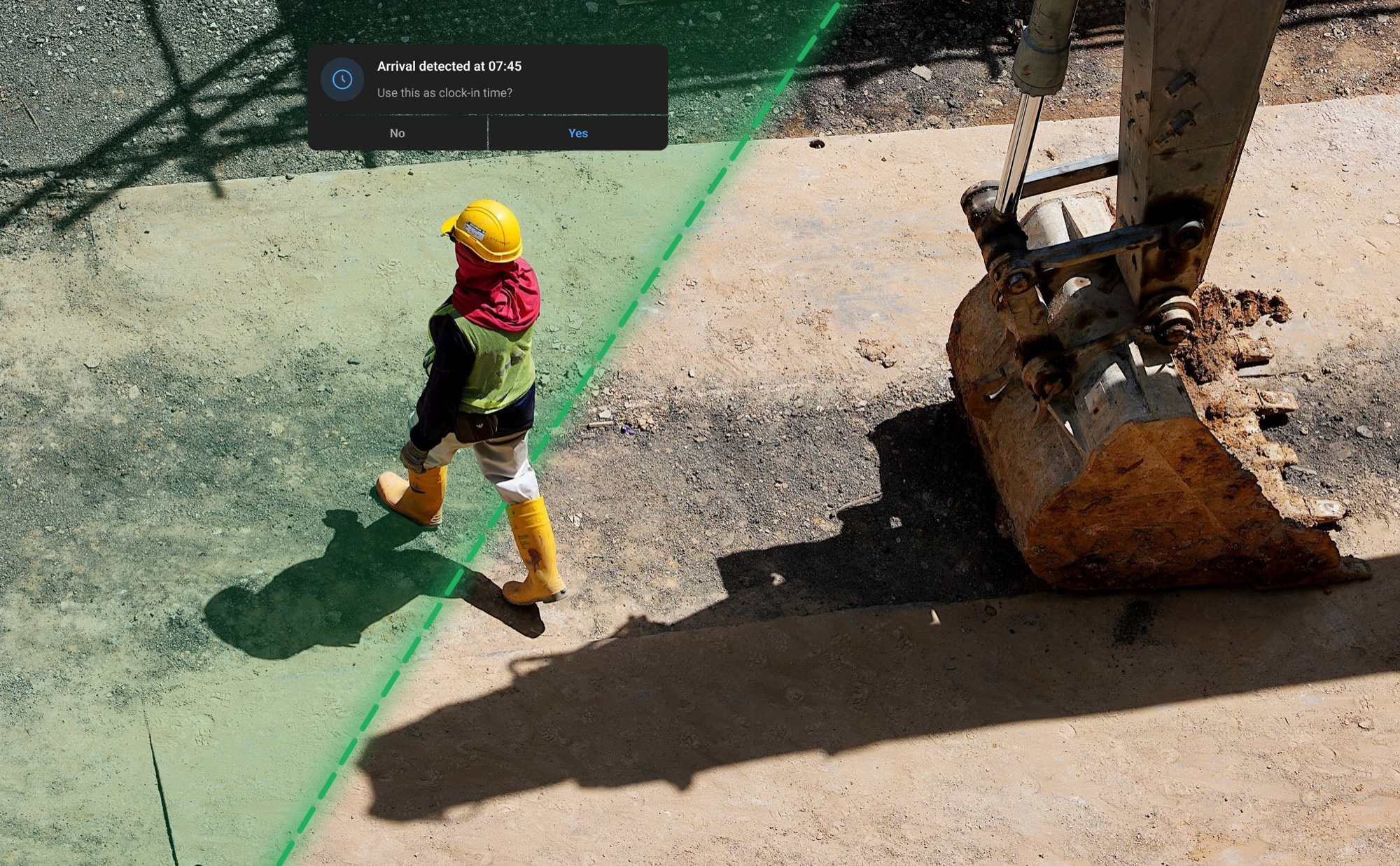
Fewer phone calls, fewer forgotten clock-outs, and getting paid for every hour you actually worked. That is what this update is about.
This release brings three things to Construction Cure: Materials on the web app, plus geofencing and live tracking in the mobile app. The first one helps the office get you what you need faster. The other two are built to protect your hours and keep you safe, not to watch over your shoulder. Below we explain exactly how each one works, including the parts about your location, in plain words.
Materials on the web: what you ask for, arrives sooner
In July we introduced Materials, the six-stage journey every material takes from “we need this” to “it’s been used”. You request it from your phone, someone approves it, someone buys it, and you confirm it on site. That part does not change for you.
What changes is the other end. The people who approve and buy your materials usually sit at a desk, and now they get the full Materials module in the Construction Cure web app. A bigger screen means they clear the queue faster:
- A board view where every request sits in its stage, so nothing gets buried in a long list.
- Bulk actions to approve, assign a buyer or mark several items at once, instead of one tap at a time.
- Quotes from suppliers sent straight from the app, so the office can compare prices without a round of phone calls.
- Transfers between projects when spare stock on one site can cover a shortage on yours.
- Popular items and a smarter catalog search, so the right product gets picked first time.
What this means for you: your request for 40 bags of cement does not wait until someone has a quiet moment on their phone. It lands on a screen built for working through requests, and you can see in the app when it moves from For Review to Ready to Buy to Awaiting Delivery. Less “did anyone order that?”, less standing around waiting for stock.
If you have office access yourself, log in at ccapp.constructioncure.com and open Materials from the sidebar.
Geofencing: never lose an hour to a forgotten clock-in
We have all done it. You get to site, the van needs unloading, someone asks you a question, and by the time you remember to clock in it is half an hour later. That half hour is yours, and geofencing helps you keep it.
Each project has a work zone around the site, between 50 and 500 metres wide (100 metres unless your company changes it). Here is what happens when you walk into it:
- Your phone shows a reminder: “You have arrived. You are at Riverside Tower. Tap to clock in.”
- You tap it and clock in as usual. The clock-in screen shows “Arrival detected at 07:52”, so the time you record is the time you actually got there.
- Still clocked in on another project? The reminder offers to switch you over in one tap.
When you clock out, the app also shows when it noticed you leaving the site, so your end time matches reality too.
Geofencing never clocks you in or out by itself. It reminds and suggests. You stay in charge of your own timesheet.
Why it matters: accurate start times protect you. In August we launched late arrival notifications, which alert your supervisor when someone clocks in more than 15 minutes after the start. If you were on site at 07:52 but only got to your phone at 08:20, the detected arrival time is there to back you up.
Better still, that captured arrival time works for you, not just your supervisor. Normally, changing your clock-in time means sending a time adjustment request and waiting for someone to approve it. When geofencing has recorded your arrival, you can move your clock-in back to that time yourself, straight away. No request, no waiting, no chasing anyone for those missing minutes. Your hours are protected by the record of when you actually turned up.
Zones are only set up for sites where you are allowed to clock yourself in, plus the site of your current shift. Your phone does not track your route. It only notices the moment you cross into or out of one of those zones.
Live location: on the clock only, and only if you switch it on
Live location shows your foreman where you are while you are working, so they do not have to ring you to find out. It is for the moments when knowing where someone is actually helps:
- Safety. On a big site, or when working alone, someone knows roughly where you are if something goes wrong.
- Fewer “where are you?” calls. Your foreman can see you are two minutes from the gate with the delivery, and gets on with their day.
- Easier coordination across sites. Whoever plans the day can see who is closest to the job that just came up.
These are the rules it follows:
- Only while you are clocked in. When you clock out, your phone stops sharing. The server also refuses any location from someone who is not clocked in.
- Only on projects that use it. Your company chooses this for each project.
- Only with your permission. You turn it on yourself under Profile > Location Access > Live Location, and you can turn it off there at any time.
- You can always tell when it is on. The Time screen shows “Live Location Active”, and on iPhone you also see the blue location indicator.
- Battery friendly. The phone only sends an update after you move about 15 metres, plus a short check-in once a minute.
Your privacy, in plain words
Live location shows only where you are right now, and only while you are clocked in. It keeps no record of your route.
Arrival reminders save the time you arrived at and left site, as part of your timesheet, just like your clock-in times.
When you are not clocked in, nothing is recorded.
For the full details, read our privacy policy.
You are always in control. You can change any of this at any time in your phone’s location settings or under Profile > Location Access in the app. Switch geofencing or live location on or off whenever you like, as often as you like.
Your company decides which roles can see live location, the same way it controls every other permission in Construction Cure. If you are unsure who can see yours, ask your manager or contact us at support@constructioncure.com.
Get started
- Update the app from the App Store or Google Play.
- Allow location “Always” when your phone asks. Your phone needs this to notice when you arrive at a site, even when the app is closed.
- Check Profile > Location Access and choose what suits you.
- Turn up to site. The next time you walk through the gate, your phone will remind you to clock in.
More on what is new in Construction Cure:
- Meet Materials: Construction Procurement in 6 Clear Stages
- 2 New Ways to Get Real-Time Site Updates: Visitor Arrival Alerts & Late Arrival Notifications
- A fresh new look for the app
Your hours, counted right. Your materials, on time. And you decide what you share.